App Store & packages
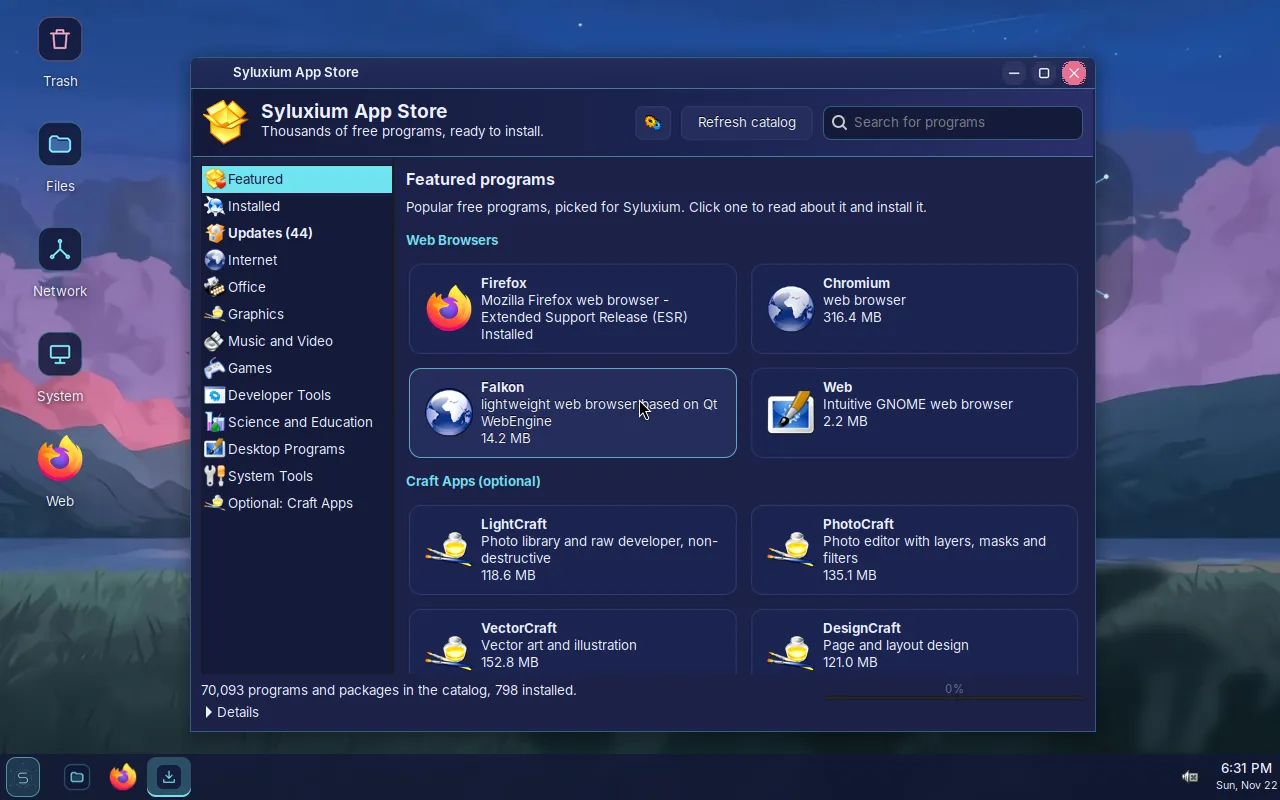
The App Store is the easiest way to get software. It offers Debian’s archive of about 70,000 packages and featured programs. Its Android Apps page is in development; see Android apps.
Installing an app
Section titled “Installing an app”-
Open App Store from the start menu.
-
Browse a category, look at Featured, or search.
-
Click Install. Dependencies are installed automatically.
-
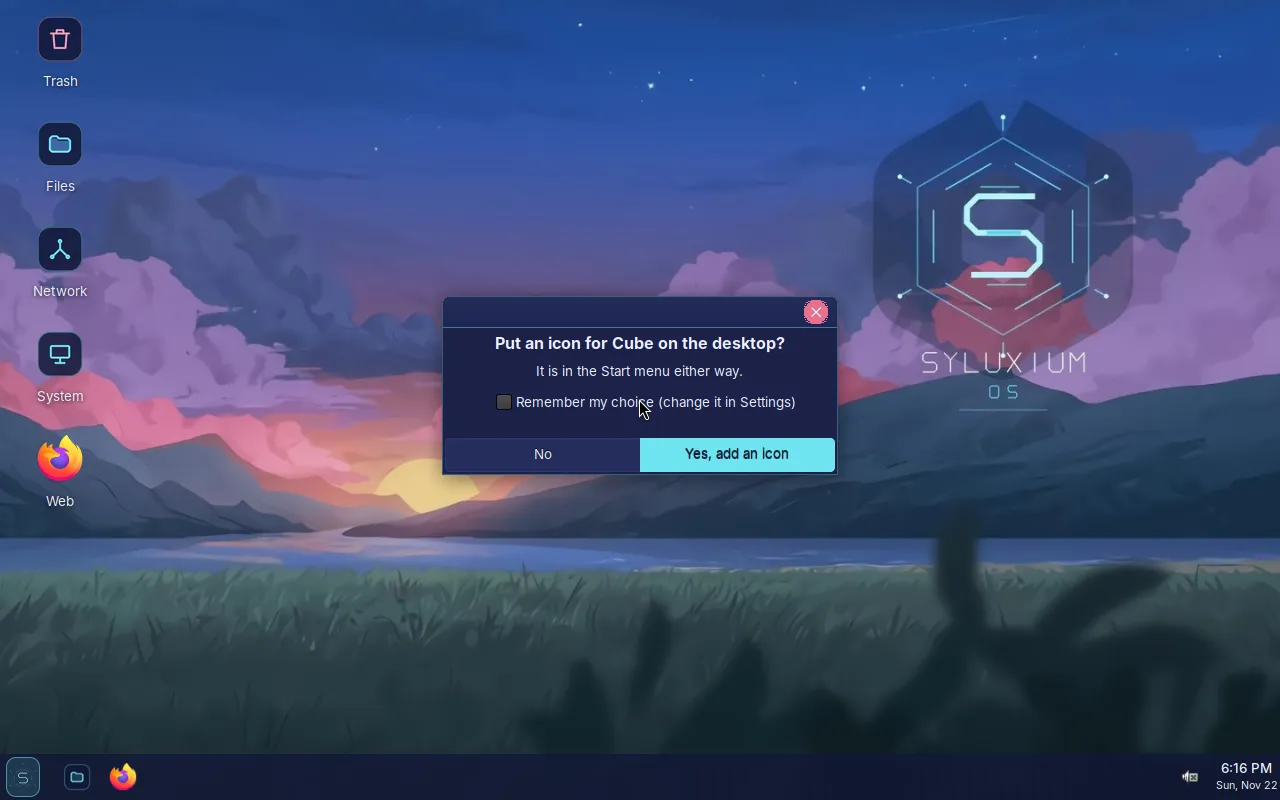
The App Store asks whether to put an icon on the desktop. Your answer can be remembered, and you can change it later in Settings.
-
When it’s done, the App Store tells you where to find the program. If a package has no start-menu entry of its own (a game engine, for example), it offers the companion package that does.
Removing an app
Section titled “Removing an app”Open the app’s page in the App Store and click Remove.
Updates
Section titled “Updates”The App Store’s Updates page lists available updates, and Syluxium Update installs them for the whole system. See Updates & recovery.
.deb files
Section titled “.deb files”Double-click a downloaded .deb file to install it, with its dependencies.
Software sources
Section titled “Software sources”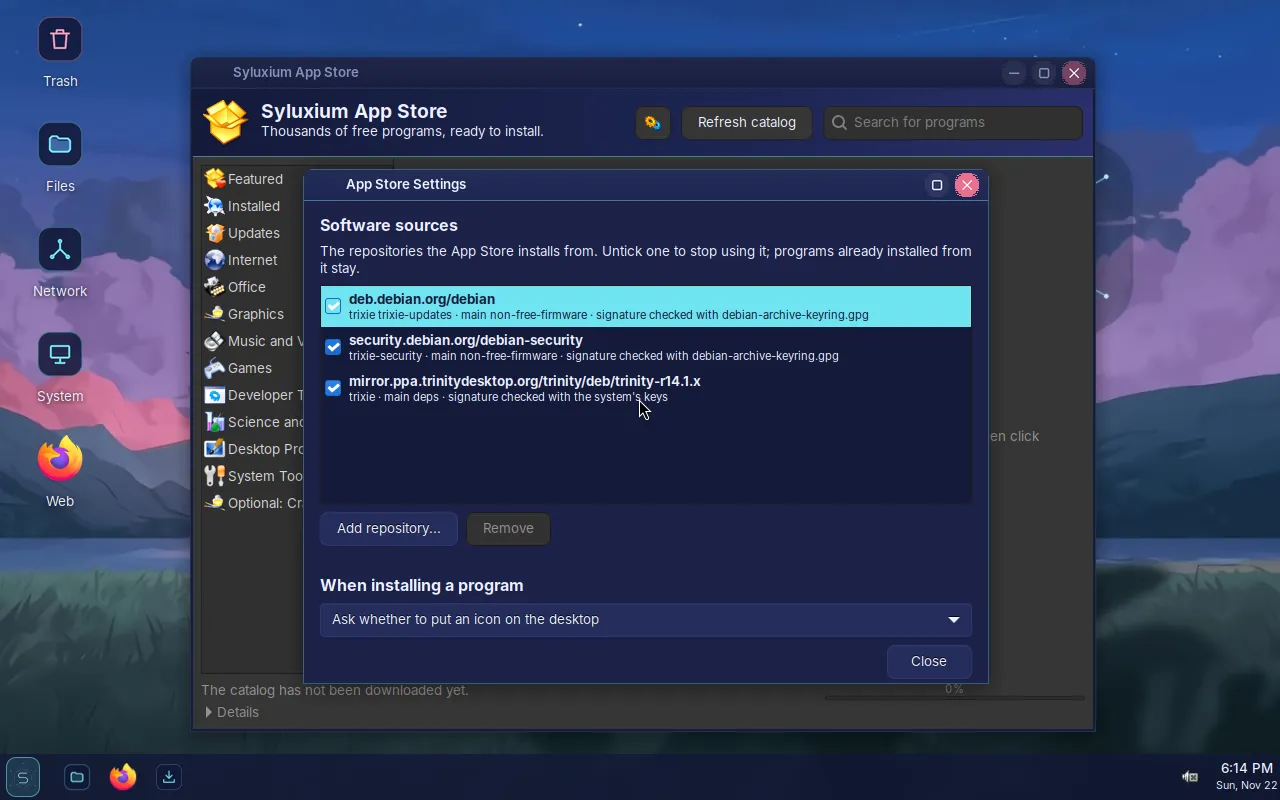
In the App Store’s Settings, turn software sources on and off, add a repository (with its signing key) or remove one.
Craft apps
Section titled “Craft apps”The App Store can optionally offer the Craft apps (LightCraft, PhotoCraft, VectorCraft, FilmCraft and
more), installed from their makers’ .deb releases.
The command line
Section titled “The command line”The App Store uses apt underneath, so everything works from the Terminal too:
sudo apt updatesudo apt install gimpsudo apt remove gimp© 2026 Syluxium Industries LLC · Founded in 2023