
The desktop
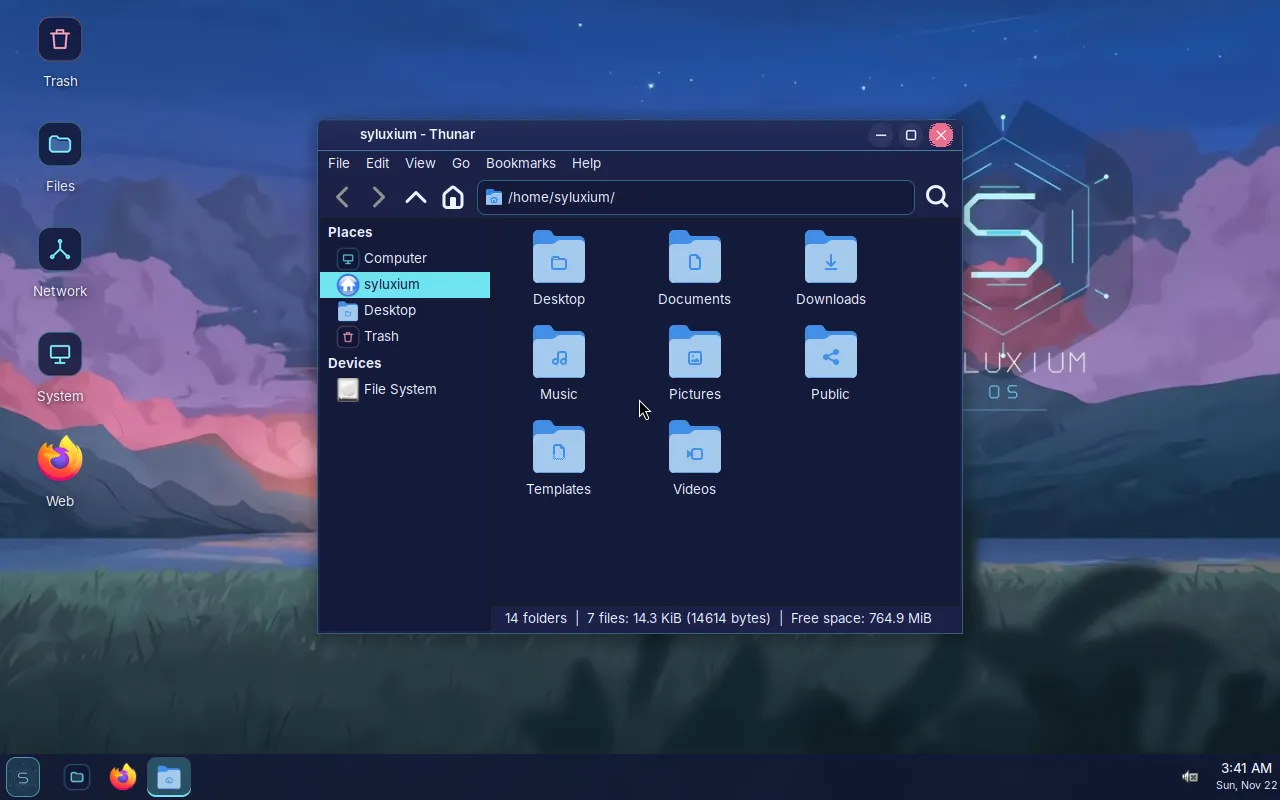
Syluxium’s desktop uses its own Dusk look on top of Xfce.
Logging in
Section titled “Logging in”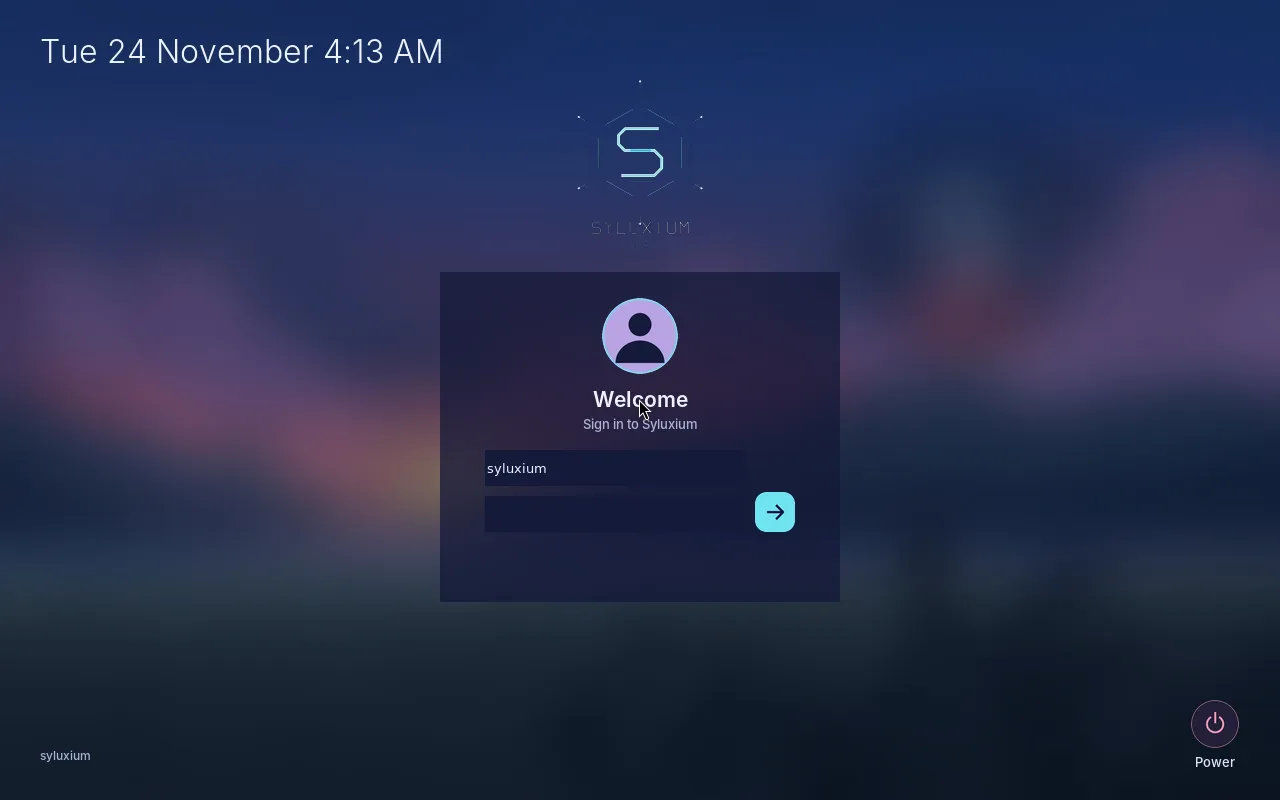
Choose your account and type your password. The session menu on the login screen lets you choose the desktop: Syluxium (Xfce in Dusk, the default) or Syluxium Classic (Trinity).
The taskbar
Section titled “The taskbar”Along the bottom of the screen:
- The start button (the hex logo) opens the start menu.
- Pinned apps start with one click.
- The window list shows open windows; click one to switch to it or minimise it.
- The tray holds the Wi-Fi, volume, battery, input-method and notification icons.
- The clock shows the date and time.
The start menu
Section titled “The start menu”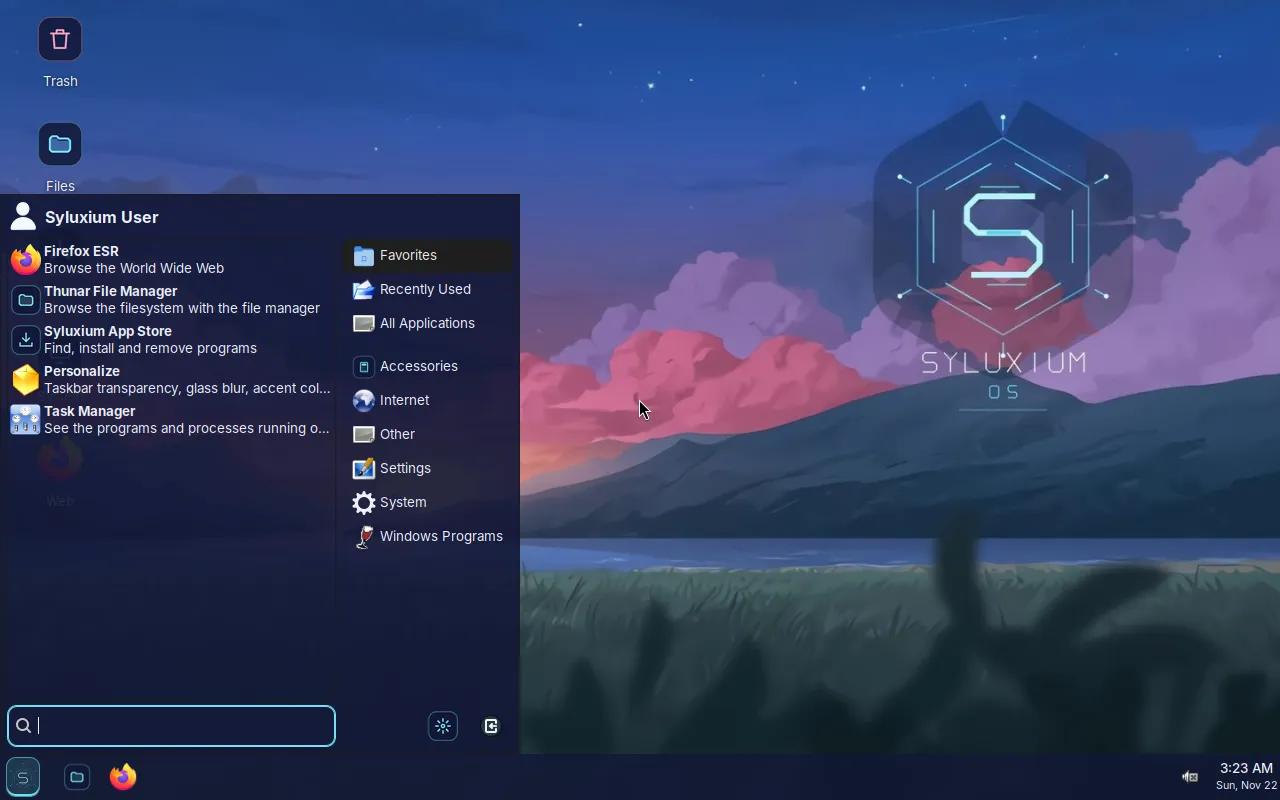
Press the Win key or Ctrl+Esc, or click the start button. Start typing to search for apps, or browse by category. Favourites are at the top.
Windows
Section titled “Windows”Windows have Dusk frames with rounded corners, transparency and shadows. Drag the title bar to move a window, drag an edge to resize it, and double-click the title bar to maximise it. Win+D shows the desktop.
Files (Win+E) is the file manager. It handles the trash, drives, and archives: right-click a
.zip or .tar for Extract Here or Extract All, or choose Send To → Compressed folder
to make one. USB drives appear automatically, with an AutoPlay prompt to open the folder or play
media.
Personalize
Section titled “Personalize”Right-click the desktop and choose Personalize to change:
- The wallpaper.
- The accent colour.
- Taskbar and window transparency.
- Window shadows.
Changes apply live, in the Xfce desktop and the Wayland shell alike.
Display settings
Section titled “Display settings”Display Settings changes the resolution, refresh rate and scaling (100 to 300 %). New settings apply immediately and are undone after 15 seconds unless you keep them, so a bad mode can’t leave you with a black screen.
Typing other languages
Section titled “Typing other languages”Syluxium includes input methods for Chinese (Pinyin), Japanese (Anthy) and Korean (Hangul), through fcitx5. Press Ctrl+Space to switch. They work in X11 and Wayland programs alike. A compose key is available for accented letters.
Notifications
Section titled “Notifications”Notifications appear as glass bubbles in the lower right, from any program (Firefox, the App Store, AutoPlay, Wi-Fi and so on).
Wayland programs and the Wayland shell
Section titled “Wayland programs and the Wayland shell”Wayland-only programs (the foot terminal, for example) open as ordinary windows in the Xfce
desktop, with Dusk frames and taskbar entries. Clipboard and drag and drop work between X11 and
Wayland programs. To force a program onto Wayland, run syluxium-wayland-run PROGRAM.
A native Wayland desktop (the Syluxium shell, on the Wayfire compositor, with blur and a glass panel) is available as a preview: press Esc in the boot picker and choose New shell: Wayland preview with glass effects. X11 programs run there through Xwayland, with the same theme, icons and clipboard.
© 2026 Syluxium Industries LLC · Founded in 2023