Installing to a disk
Start Syluxium from the USB stick and open Install Syluxium from the desktop or the start menu.
-
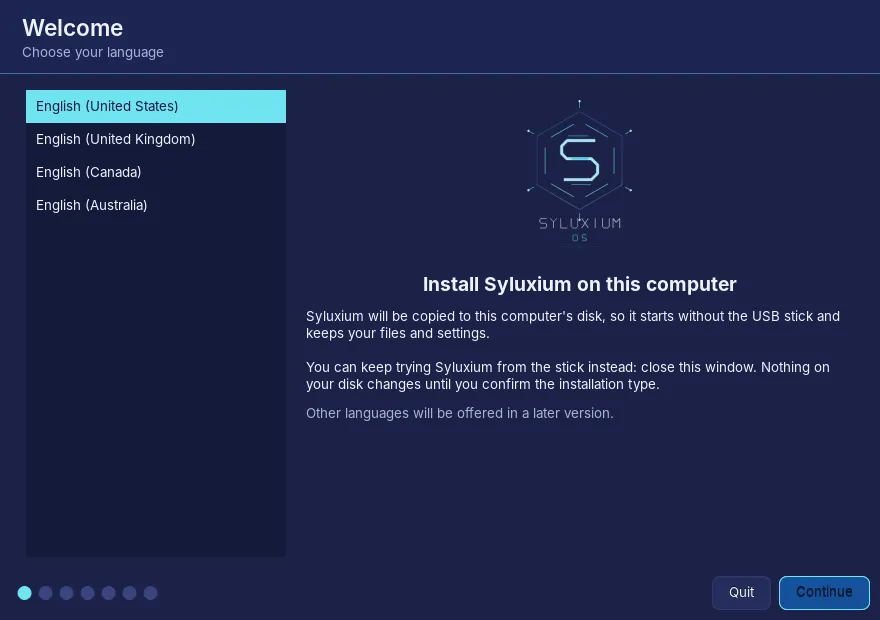
Language and keyboard. Choose your language and keyboard layout.
-
Network. Connect to the internet (optional, but needed for updates during installation).
-
Software and updates. Choose whether to install updates and extra software.
-
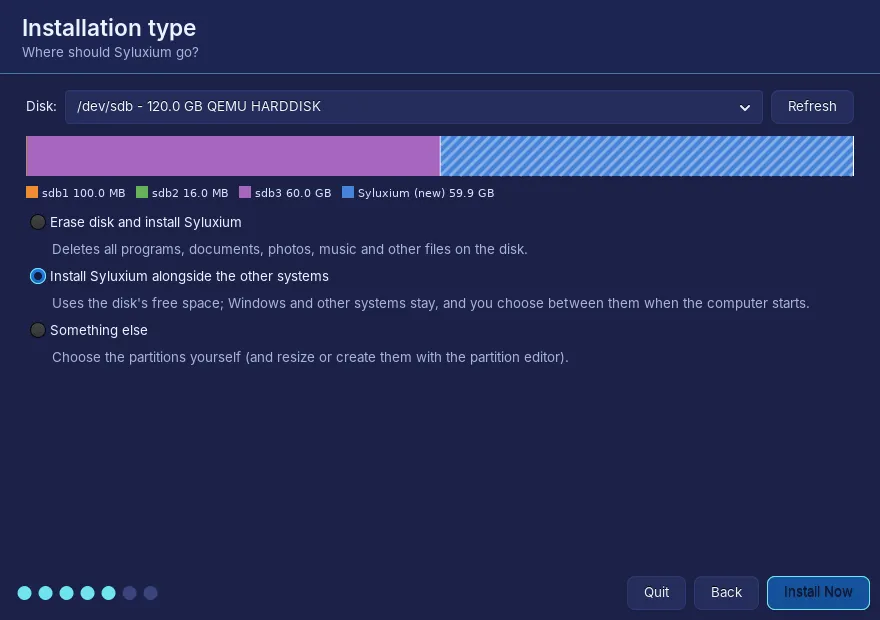
Installation type.
- Erase disk: uses the whole disk for Syluxium.
- Alongside Windows: shrinks the Windows partition and installs next to it. You’ll choose a system in the boot picker at every start.
- Manual: create and choose partitions yourself.
-
Where to install. The partition view shows what will change before anything is written.
-
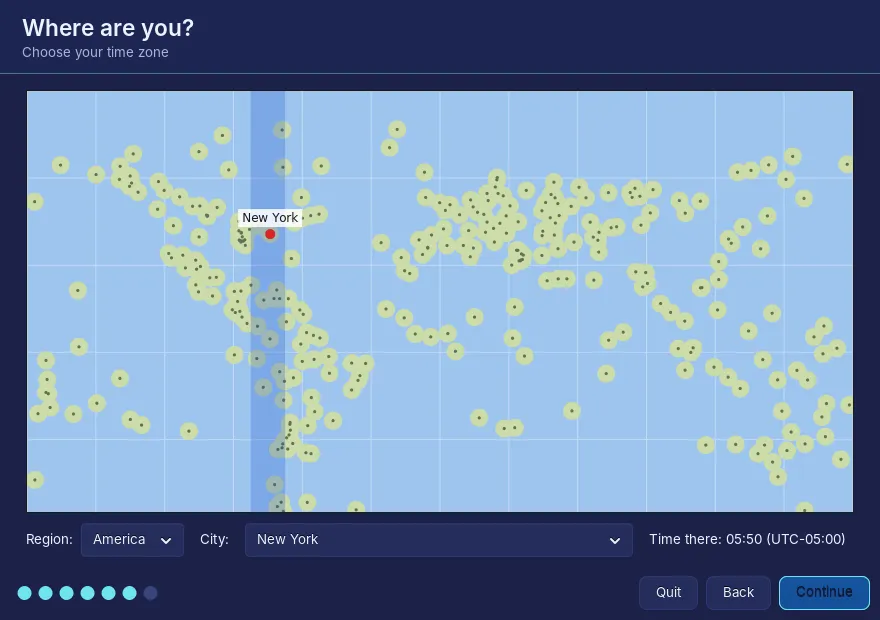
Time zone. Click your location on the map.
-
Your account. Enter your name, a user name and a password.
-
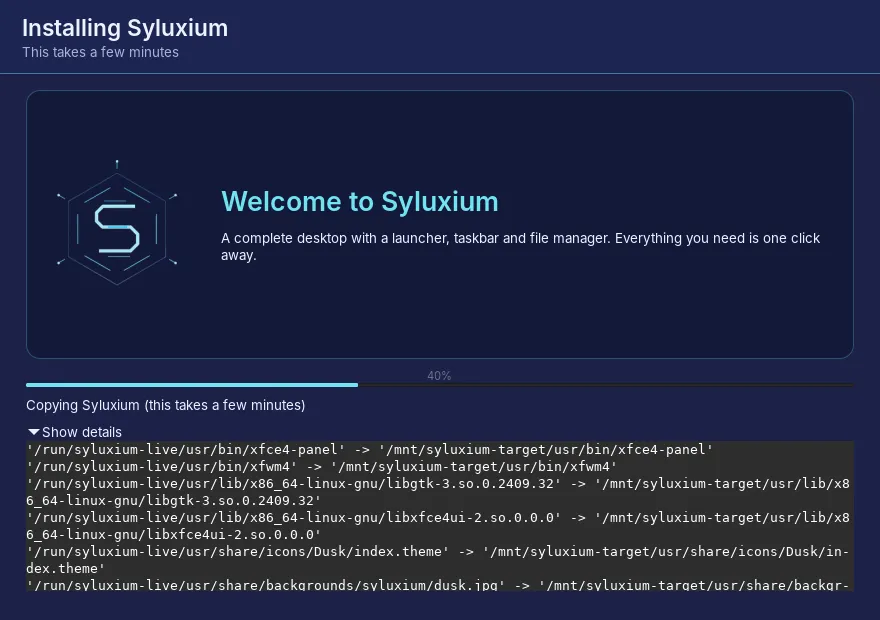
Install. The installer creates a GPT partition table, an ext4 file system and the Limine bootloader (UEFI or BIOS). The progress bar shows how much has been copied (e.g. “Copying Syluxium: 1.2 of 3.4 GB”), and Show details shows the install log live. Remove the stick and restart when it’s done.
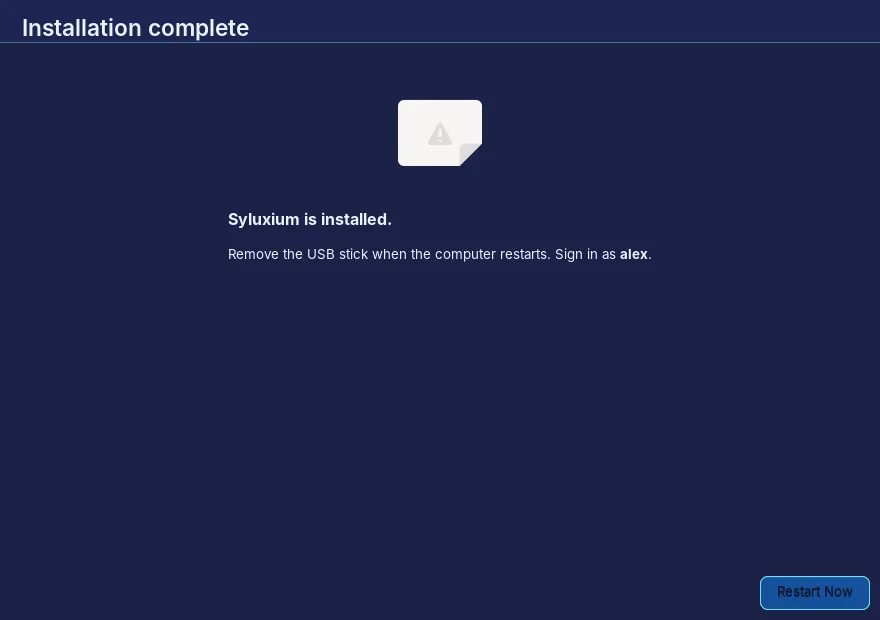
When Syluxium is installed next to another system, it registers itself in the computer’s firmware so its boot picker appears at start-up.
© 2026 Syluxium Industries LLC · Founded in 2023